How to View Outbound Clicks in Google Analytics 4 (GA4)

by | Last updated Jan 28, 2026 | GA4

To view outbound clicks in Google Analytics 4, go to the Admin section by clicking the gear icon in the bottom-left corner. Select your data stream under ‘Data Streams’ and enable Enhanced Measurement. Outbound clicks will be tracked as a ‘click’ event under ‘Events.’ For detailed insights, create a new Exploration report, add dimensions like ‘Link URL’ and ‘Event Name,’ Metrics like “Event Count” and “Total Users,” and apply a filter to track outbound clicks effectively.

For a detailed guide follow the beloved steps.

Steps to View Outbound Clicks in Google Analytics 4 (GA4)

  • Go to Admin Setting
  • Select Your Data Stream
  • Enable Enhanced Measurement
  • Verify Outbound Click Tracking in Events
  • Create a New Exploration Report
  • Add Relevant Dimensions and Metrics
  • Organize Your Report
  • Apply a Filter for Outbound Clicks
  • Review Your Outbound Click Report

Step 1: Go to Admin Setting

To get started, log into your GA4 account. Once you’re in, click on the gear icon in the bottom-left corner to open the Admin section.
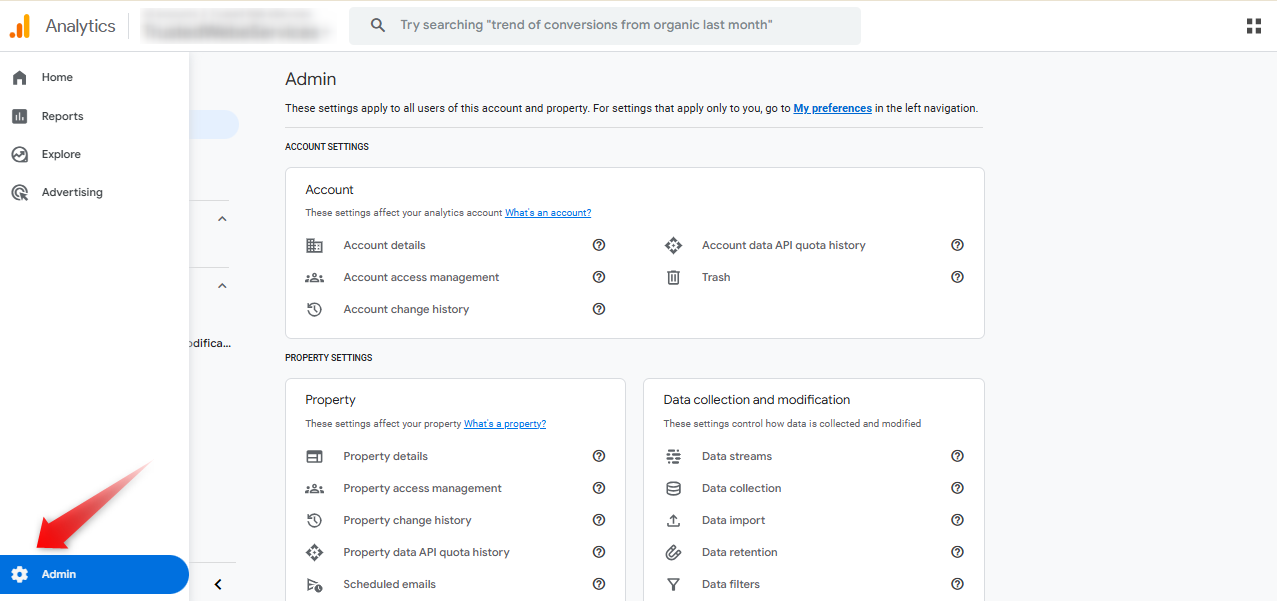
go to admin setting

Step 2: Select Your Data Stream

In the Admin section, navigate to the ‘Data Streams’ option under the ‘Data Collection and Modification’ section. Select the appropriate data stream for the website where you want to track outbound clicks.
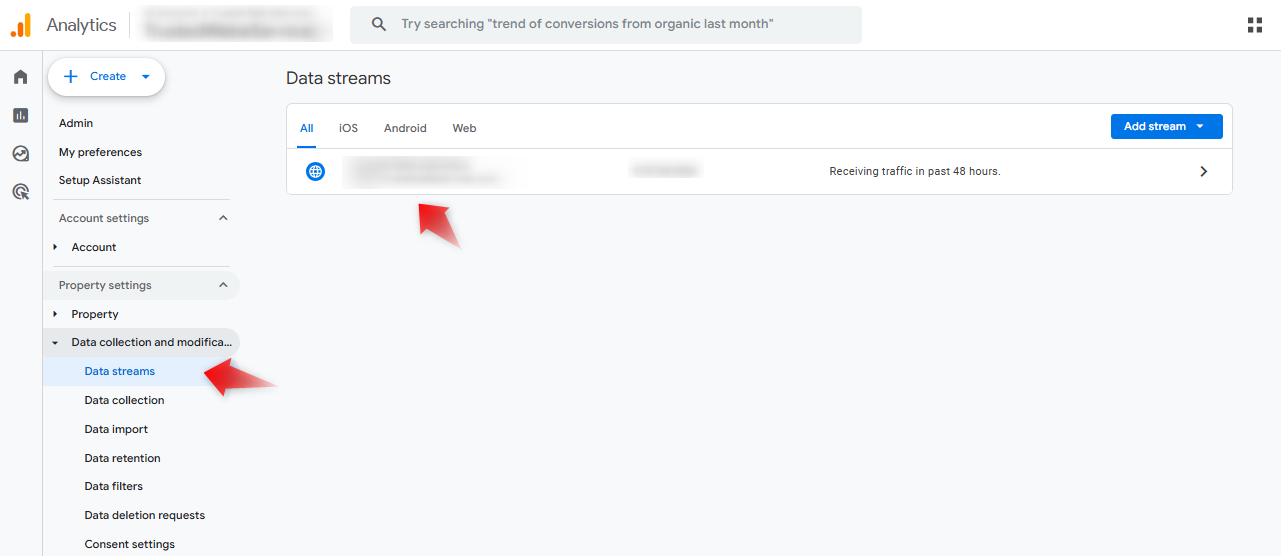
select your data stream

Step 3: Enable Enhanced Measurement

Scroll down to the ‘Enhanced Measurement’ section within your data stream settings. Click on the settings icon, enable outbound clicks, and then hit ‘Save.’
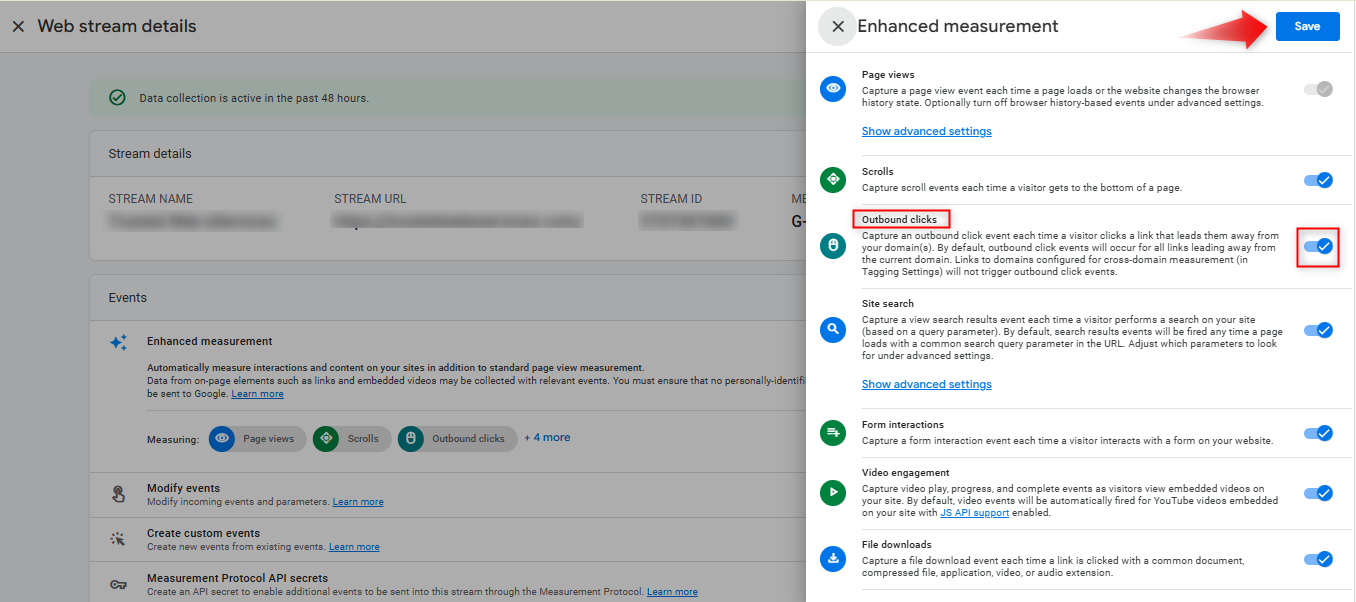
enable enhanced measurement

Step 4: Verify Outbound Click Tracking in Events

Once enabled, outbound clicks will be automatically recorded as a ‘click’ event under the ‘Events’ section. However, to get detailed insights about which external links users are clicking, you’ll need to customize your report.
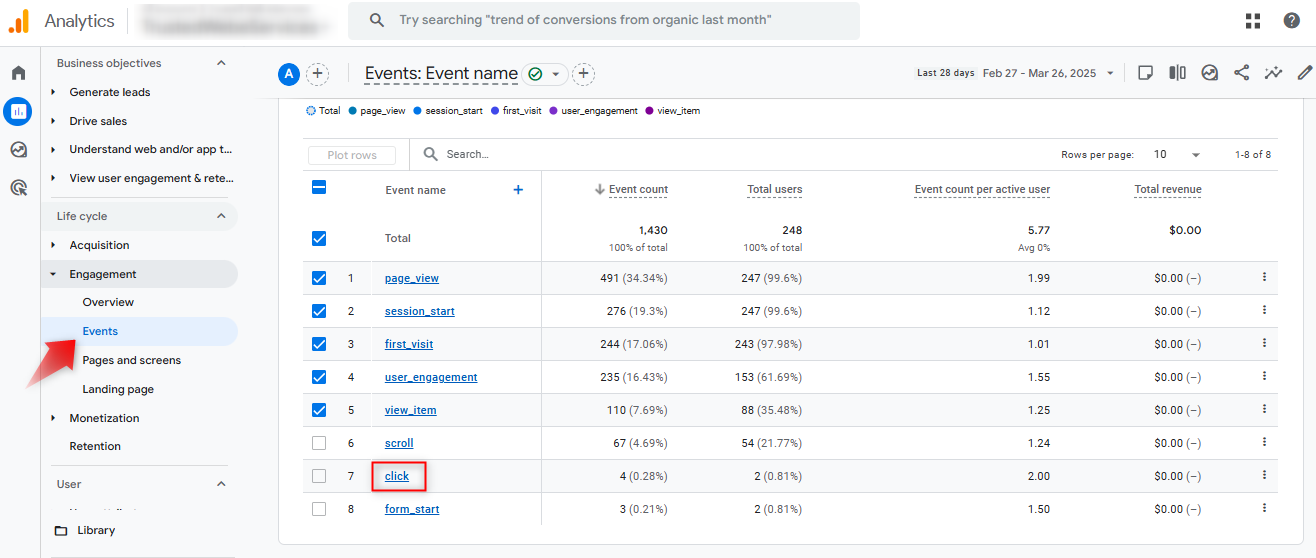
verify outbound click tracking in events

Step 5: Create a New Exploration Report

To analyze outbound clicks more effectively:

  • Go to the ‘Explorations’ tab in GA4.
  • Select ‘Blank’ to start with a new report.
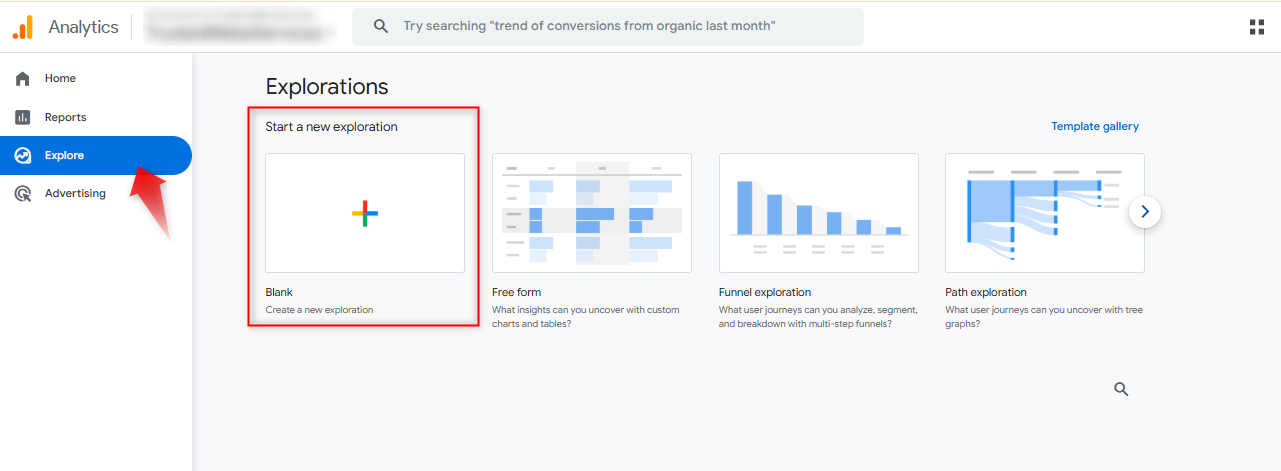
create a new exploration report

Step 6: Add Relevant Dimensions and Metrics

To customize your report:

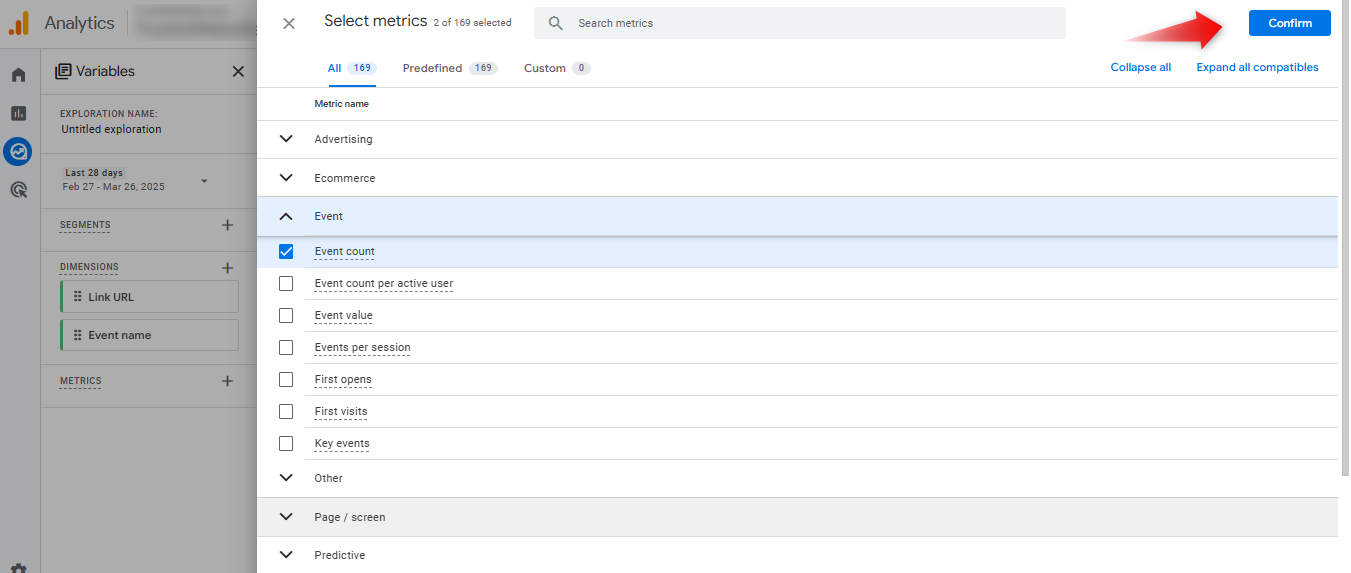
  • Click the plus icon next to ‘Dimensions’ and search for ‘Link URL’ and ‘Event Name.’
  • Select both dimensions and click ‘Confirm’ to import them.
  • Next, click the plus icon next to ‘Metrics’ and add ‘Event Count’ and ‘Total Users.’
  • Once selected, click ‘Confirm’ to import these metrics.
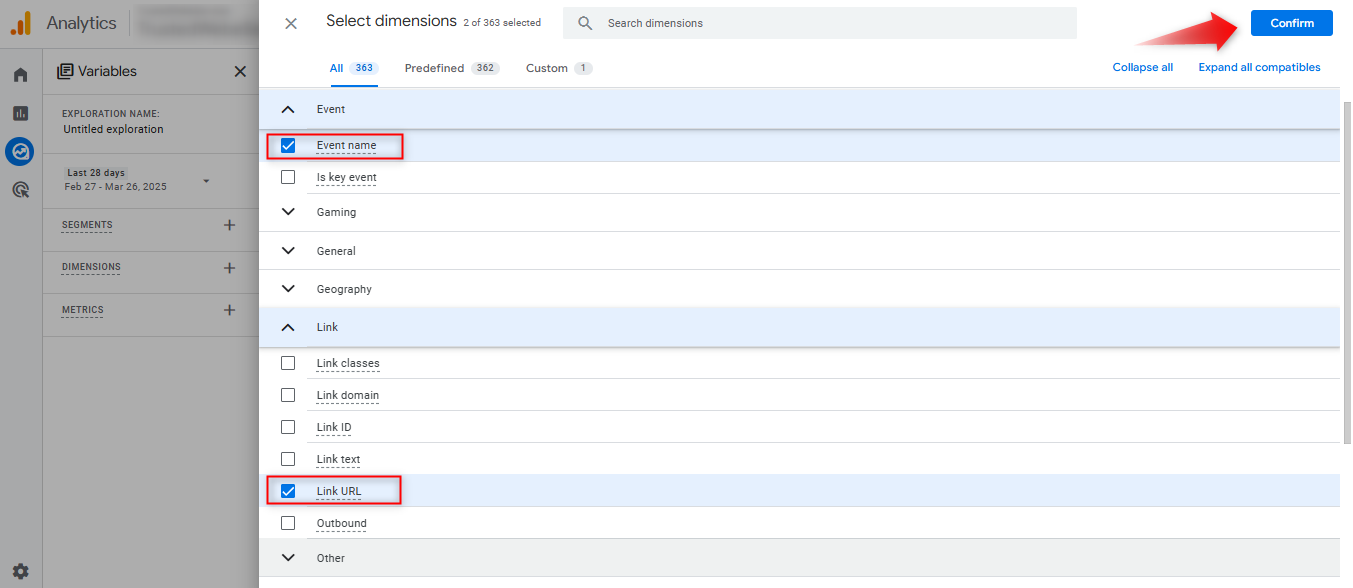
add relevant dimensions
add relevant metrics

Step 7: Organize Your Report

To organize the data:

  • Double-click on ‘Link URL’ to move it to the Rows section.
  • Drag ‘Event Count’ and ‘Total Users’ to the Values section.
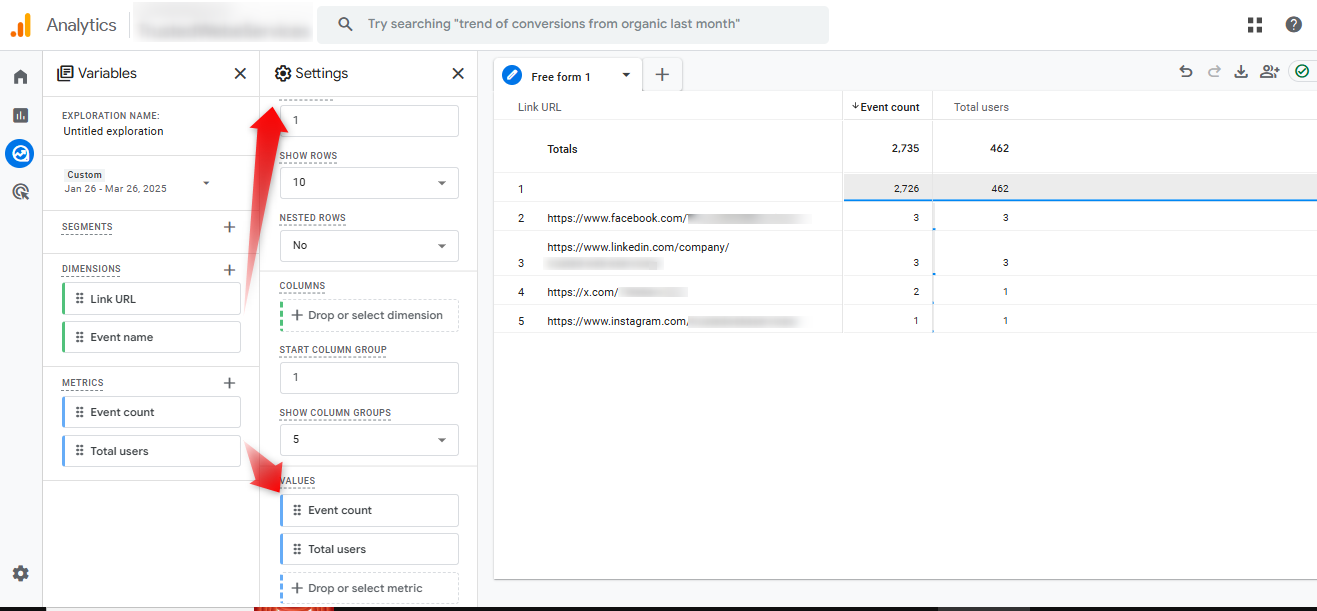
organize your report

Step 8: Apply a Filter for Outbound Clicks

To narrow down your report to only show outbound clicks:

  • Drag the ‘Event Name’ dimension to the Filters section.
  • Set it to ‘exactly matches’ and choose ‘click’ from the available options.
  • Click ‘Apply’ to finalize your settings.
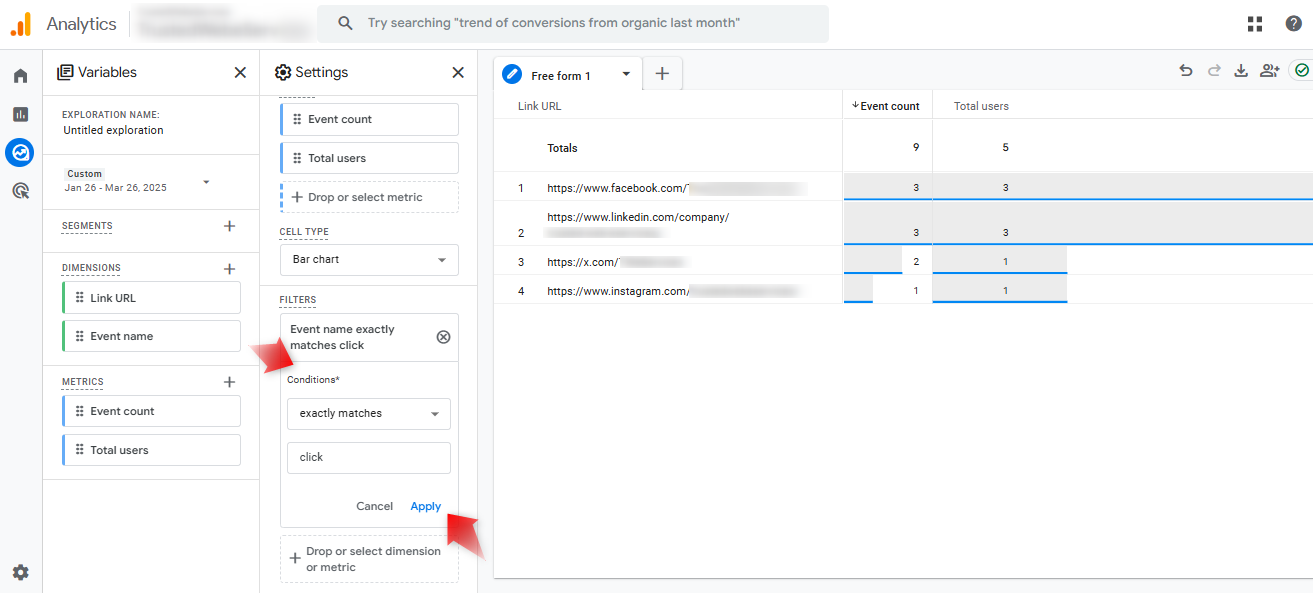
apply a filter for outbound clicks

Step 9: Review Your Outbound Click Report

Once the report is set up, you’ll be able to see detailed data on outbound clicks. The report will display the external links that your visitors clicked, along with the number of recorded events and the total number of users who interacted with those links.
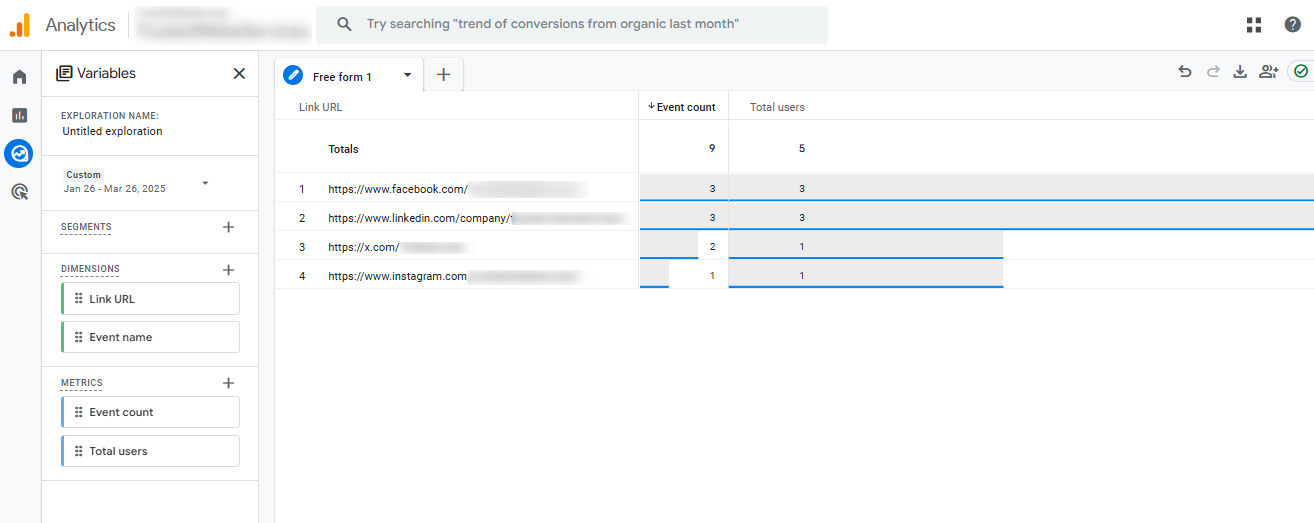
review your outbound click report

Final Thoughts

Monitoring outbound clicks in GA4 helps you understand which external resources your visitors are most interested in. This data allows you to optimize your website by adding relevant external links and improving user engagement.

By following these steps, you can easily track and analyze outbound clicks in Google Analytics 4, gaining deeper insights into how users interact with your external content.

FAQs

1: How do I track outbound clicks in GA4?

You can track outbound clicks in GA4 through Events. GA4 automatically collects outbound clicks as link_click events. You can view these events in Reports > Engagement > Events and search for “click” or “outbound” events.

2: Where can I find outbound link clicks in GA4?

GA4 shows outbound clicks in the Events report. Navigate to Reports > Engagement > Events. Filter for “click” events. The report displays click data including link URLs and click counts.

3: Does GA4 automatically track outbound clicks?

Yes, GA4 tracks outbound clicks automatically through Enhanced Measurement. Enable Enhanced Measurement in Admin > Data Streams > Select your stream > Enhanced Measurement toggle. This setting captures all outbound link interactions.

4: How do I create an outbound clicks report in GA4?

Create an outbound clicks report in GA4 through Explore. Select Exploration > Blank Template. Add “link_click” as your dimension. Add metrics like “Event count” or “Total users”. Apply filters for outbound links.

5: What is the difference between outbound clicks in GA4 vs Universal Analytics?

GA4 tracks outbound clicks as “click” events with Enhanced Measurement. Universal Analytics used event tracking with categories and actions. GA4 provides more detailed click data and automatic tracking features.

6: Can I see which outbound links get the most clicks in GA4?

Yes, GA4 shows popular outbound links in Events reports. Check Reports > Engagement > Events > click. The report shows click counts per link. Sort by event count to see top-clicked links.

Surface Must Match
Website footer Legal business name, address, phone
Contact page Phone, email, address, hours
About page Business name, description
Checkout confirmation Merchant name, support contact
Merchant Center account All of the above
Google Business Profile Name, address, phone — verified

Common Identity Failures We Find

  • Registered name is “Acme Commerce LLC” but only brand name appears on site — no connection Google can verify
  • Gmail address used as primary contact instead of a domain-matched business email
  • Different phone numbers appearing on different pages of the same website

Mistake 3: Submitting an Appeal Before Fixing the Root Cause

CONSEQUENCES OR EARLY APPEAL SUBMISSION
Appeal Timing Consequence
Submitted before fixes are complete Rejection — cool-down period starts
Second rejection Cool-down period gets longer
Third rejection Extended hold — reinstatement becomes significantly harder
Submitted before Google recrawls Reviewer sees old version of your site — not your fixes

 ✅ Our Rule

Fix everything first. Document every change. Wait at least 7 days for Google to recrawl all updated pages. Then submit the appeal.

What Google Actually Flags That Most Merchants Miss

Most guides cover the obvious items. These are the signals Google evaluates that almost no published guide covers.

1. No Verifiable Business Identity Across External Sources

Google cross-references your business identity against external signals — Google Business Profile, third-party directories, social profiles, and domain registration history. If your website says Chicago but your GBP lists a different city, these inconsistencies contribute to the misrepresentation assessment.

2. Website Change History

This is one of the most underreported triggers we have observed directly in client accounts. Google tracks the change history of your domain and Merchant Center account.

CHANGES THAT TRIGGER AUTOMATED RE-EVALUATION
Change Type Why It Triggers a Flag
Domain name change Google sees a new identity on an established history
Company rebrand Business identity no longer matches account history
Mass product title updates Signals a potentially different business category
Expired domain purchase Previous business history conflicts with new business type

Expired Domain Example

A merchant purchases an expired domain previously used for a different type of business. The domain has existing visibility and citations from its prior use. When the new owner starts a completely different business, Google detects the conflict between the domain’s history and the current business — triggering a misrepresentation flag.

3. Domain Hopping High Risk

🚨 Critical Warning

If you move products from a suspended domain to a new domain without changing your business practices, Google’s history tracking links the two accounts. This escalates the violation from Misrepresentation — which is appealable — to Circumventing Systems, which is a near-permanent ban that is extremely difficult to reverse.

4. Shell Site Signals Warning

Rapidly changing business details signal instability to Google:

  • Swapping physical addresses every few months
  • Changing business names repeatedly without a clear rebrand reason
  • Updating contact information without a corresponding business explanation

Google looks for business stability over time — not just compliance at a single point in time.

5. Checkout Behaviour

Google’s crawlers evaluate the checkout experience specifically. These are rarely mentioned in standard guides but appear regularly in re-review criteria:

  • Requires account creation before allowing purchase
  • Shows unexpected fees at the final payment step
  • Does not display merchant name on the payment screen
  • Unclear order confirmation with no contact details

The First 3 Things We Check When a Client Comes to Us

INSTALL ASSESMENT CHECKLIST
Priority What We Check What We Are Looking For
1 Website trust signals end-to-end Can a first-time visitor identify who the business is, how to contact them, and what the purchase terms are within 30–60 seconds?
2 Policy pages — content and consistency Contradictions between policy pages and product pages or feed data — not just whether pages exist
3 Product pages, cart, and checkout Price consistency across listing → page → cart → checkout; shipping match with feed; merchant name visible at checkout

Website Fixes That Unlock Reinstatement Most Often

Fix 1: Add Real, Verifiable Business Proof

BUSINESS IDENTITY REQUIREMENTS
Element Requirement
Business name Legal name consistent across all pages and Merchant Center
Phone number Real business line — not a personal cell phone
Support email Domain-matched (you@yourdomain.com) — not Gmail or Yahoo
About page Describes a real company with real people — not generic copy
Physical address Consistent format across footer, contact page, and GMC

Fix 2: Integrate an Approved Google Business Profile

GBP gives Google an independently verified source of your business identity that cross-validates what your website claims. In many cases we have worked on, all the website fixes were in place but reinstatement only came after GBP was verified and linked. We include GBP verification as a standard step in every reinstatement.

Expired Domain Example

  • GBP is verified — not pending
  • Business name matches Merchant Center exactly
  • Address matches website footer exactly
  • Phone number matches Contact page exactly
  • GBP is linked to Merchant Center account

Fix 3: Rewrite Policy Pages From Scratch

Do not edit a copied or template policy — rewrite it based on how your business actually operates.

POLICY PAGE REQUIREMENTS BY TYPES

Policy Page What Must Be Specific to Your Store
Returns & Refunds Exact return window, condition requirements, refund timeline, restocking fees if any, return method
Shipping Actual carriers used, processing time, delivery ranges by region, cutoff times
Privacy Policy Specific to your data collection — not a generic template
Terms & Conditions Payment terms, dispute resolution, applicable jurisdiction
Policy Language: Fail vs Pass

❌ Fails Google Review ✅ Passes Google Review
“We process returns in a timely manner” “Returns accepted within 30 days of delivery, processed within 3 business days, refunded to original payment method”
“Shipping times may vary” “Orders ship within 1–2 business days via USPS or UPS. Delivery: 3–7 business days to US addresses”
“Contact us for more information” “support@yourdomain.com · (555) 123-4567 · Mon–Fri 9am–5pm EST”

Fix 4: Update Product Pages and Feed Data

  • Price must match exactly across: listing → product page → cart → checkout → feed
  • Availability claims must reflect real inventory status
  • Remove restricted language — especially in health, wellness, and supplement categories
  • Shipping estimate on product page must match the Merchant Center feed

Step-by-Step Fix Process

⚠️ IMPORTANT

Do not submit an appeal until every step below is complete. Use GSC URL Inspection to confirm pages have been recrawled before submitting.

1
Read Suspension Notice

Go to Merchant Center → Diagnostics → Account issues. Screenshot the exact violation language.

2
Audit Business Identity Across All Pages

Check footer, Contact page, About page, checkout, Merchant Center, and Google Business Profile.

3
Rewrite All Policy Pages From Scratch

Rewrite returns, shipping, privacy, and terms based on real operations.

4
Verify Google Business Profile

Start verification — may take 5–7 days. Link to Merchant Center.

5
Fix Product Pages and Feed Data

Check price consistency, remove restricted language, update feed.

6
Run a Full Test Purchase

Verify checkout flow, pricing, and confirmation details.

7
Wait Minimum 7 Days for Recrawl

Allow Google to recrawl before submitting appeal.

8
Document Every Change With Screenshots

Keep before/after proof of all fixes.

9
Submit Appeal via Merchant Center

Go to Account issues → Request re-review.

How to Write a Successful Appeal

SUCCESSFUL APPEAL VS REJECTED APPEAL
Successful Appeal Rejected Appeal
Submitted after full recrawl — 7+ days after fixes Submitted within 24–48 hours of changes
GBP verified and linked to Merchant Center GBP pending or not linked
All root causes fixed Only surface-level items addressed
Specific language about what was changed Vague claims of general compliance
Professional, honest, non-argumentative tone Defensive or argumentative tone

Appeal Message Template That Works

Copy and customise for your account

We received the suspension notice for Misrepresentation and conducted a full review of our website and Merchant Center account.

We have made the following corrections:

  • Updated business information to ensure consistency across all pages and our Merchant Center account
  • Rewritten returns, shipping, and terms policies to clearly reflect our actual business practices
  • Verified our Google Business Profile and linked it to our Merchant Center account
  • Corrected product page and feed data inconsistencies

We are confident our account now meets Google’s Shopping policies and respectfully request a re-review.

Special Considerations for Dropshipping Stores

Dropshipping stores face a higher bar for reinstatement. Your appeal needs:

  • Evidence of supplier relationships
  • Verifiable fulfilment arrangements
  • Proof of business legitimacy beyond a compliant-looking website

Real Reinstatement Cases

NickWilkins.shop
eCommerce · 1 Appeal · 10–12 Days
Suspension Reason Misrepresentation — no trust signals, copied policy pages
Root Cause No verifiable business identity; templated policies with no store-specific detail
Fixes Applied Full business information added; all policy pages rewritten
Number of Appeals 1
Time to Reinstatement 10–12 days
GoTurbo.net
Automotive eCommerce · 1 Appeal · 8–10 Days
Suspension Reason Misrepresentation — trust signal gaps
Fixes Applied Policies rewritten; business info added; Google Business Profile verified
Number of Appeals 1
Time to Reinstatement 8–10 days
Neutrove.com — Medical Supplements
Restricted Category · 4 Appeals · ~1 Month
Category Vitamins and health supplements
Standard Expectation Medical certificate required
Initial Appeals 3 — rejected
What We Did Differently Replaced restricted language; waited for full recrawl; submitted final appeal
Result Approved — no certificate required

KEY LESSON FOR RESTRECTED CATEGORIES.

In restricted categories, recrawl timing matters as much as the fixes themselves. Google’s review decision is based on what its crawler has indexed — not what your site looks like on the day you submit. Submitting before updated content is fully indexed means the reviewer is looking at old data. After replacing all restricted language, we waited approximately one month for Google to fully recrawl every updated page before submitting the fourth appeal.

Frequently Asked Questions

Q

What does misrepresentation mean in Google Merchant Center?

Misrepresentation means Google cannot confidently verify your store’s identity, product claims, or post-purchase commitments. It does not always mean intentional deception — incomplete policies, unverifiable business information, and inconsistent data across your site and feed can all trigger it.

Q

How long does a Google Merchant Center misrepresentation suspension last?

There is no fixed duration. Most straightforward cases take 2–3 weeks from the start of fixes to reinstatement. Complex cases — particularly restricted product categories or accounts with multiple failed appeals — can take longer.

Q

Can I create a new Google Merchant Center account if suspended for misrepresentation?

No. Creating a new account while suspended is treated as Circumventing Systems — a separate and more severe violation. Google links accounts by domain, business details, payment methods, and IP signals. The escalation significantly reduces the chance of reinstatement.

Q

How many times can I appeal a Google Merchant Center suspension?

There is no official hard limit, but each rejected appeal triggers a progressively longer cool-down period. After three failed appeals the path to reinstatement becomes substantially harder. Fix every root cause before the first appeal — not after a rejection.

Q

Will fixing GMC misrepresentation also fix my Google Ads suspension?

Often yes — if your Google Ads account was suspended as a direct result of the Merchant Center misrepresentation issue, fixing and reinstating the Merchant Center typically resolves the Ads suspension as well. If your Ads account was suspended independently, the two need to be addressed separately.

Q

How do I know if my appeal is likely to be approved?

Strong indicators of likely approval:

  • Google Business Profile verified and linked to Merchant Center
  • All policy pages specific and consistent with feed data
  • Business identity consistent across every page and Merchant Center account
  • Minimum 7 days waited after fixes for Google to recrawl
  • Appeal message is specific, honest, and professional

After Reinstatement: How to Stay Compliant

Post-Reinstatement Compliance Practices
Practice Why It Matters
Do not use language Google flagged as restricted Reinstated accounts are monitored more closely than new accounts
Do not change policy pages without review Policy pages approved at reinstatement are the standard Google accepted — changes reintroduce risk
Maintain consistent product data Price and availability mismatches are the most common cause of re-suspension after reinstatement
No fake offers or misleading promotions Countdown timers that reset, unavailable discounts, or hidden fees trigger rapid re-suspension
Monitor Merchant Center Diagnostics weekly Catching a warning before it becomes a suspension is significantly easier to resolve

Need This Done For You?

If you would rather have a specialist handle the full reinstatement process — audit, fixes, GBP verification, and appeal submission — our team at Trusted Web Eservices works exclusively on Google Merchant Center and Google Ads reinstatements for US eCommerce stores.

Ajay Mistry

Verified Verified Google Merchant Center Compliance Specialist

Ajay Mistry is a Google Merchant Center Compliance Specialist with deep expertise in resolving account suspensions, correcting misrepresentation issues, and building policy-compliant eCommerce advertising systems. He specializes in Google Merchant Center, Performance Max (PMax), GA4 tracking, and Google Tag Manager, helping businesses achieve stable approvals, accurate data, and scalable growth through strict adherence to Google guidelines.