
How to Check If Your Website Uses GA4
You can check if you have Google Analytics 4 by following these simple steps. First, open your Google Analytics account and look at the property ID. GA4 properties start with “G-” while Universal Analytics properties start with “UA-“.
Go to Admin settings in your Google Analytics dashboard. Look at the top of the property column. If you see “GA4 Setup Assistant,” you are using Universal Analytics. If you see “Data Streams,” you have GA4. You can also check your reports – GA4 has different report layouts and features compared to Universal Analytics.
5 Easy Steps to Know If You’ve Google Analytics 4 (GA4) or Not [with Screenshot]
A step-by-step guide on how to determine if you have Google Analytics 4 (GA4) set up on your website:
- Log in to your Google Analytics account
- Check for the GA4 property
- Verify the property type
- Look for the GA4 tracking code
- Check the Google Tag Manager
Step 1: Log in to your Google Analytics account
Start by logging into your Google Analytics account at analytics.google.com. This will take you to the main dashboard.
Step 2: Check for the GA4 property
Look for the “GA4” label in the top left corner of the screen. If you see this, it means you have a GA4 property set up.
Step 3: Verify the Property Type
- Go to the “Admin” tab.
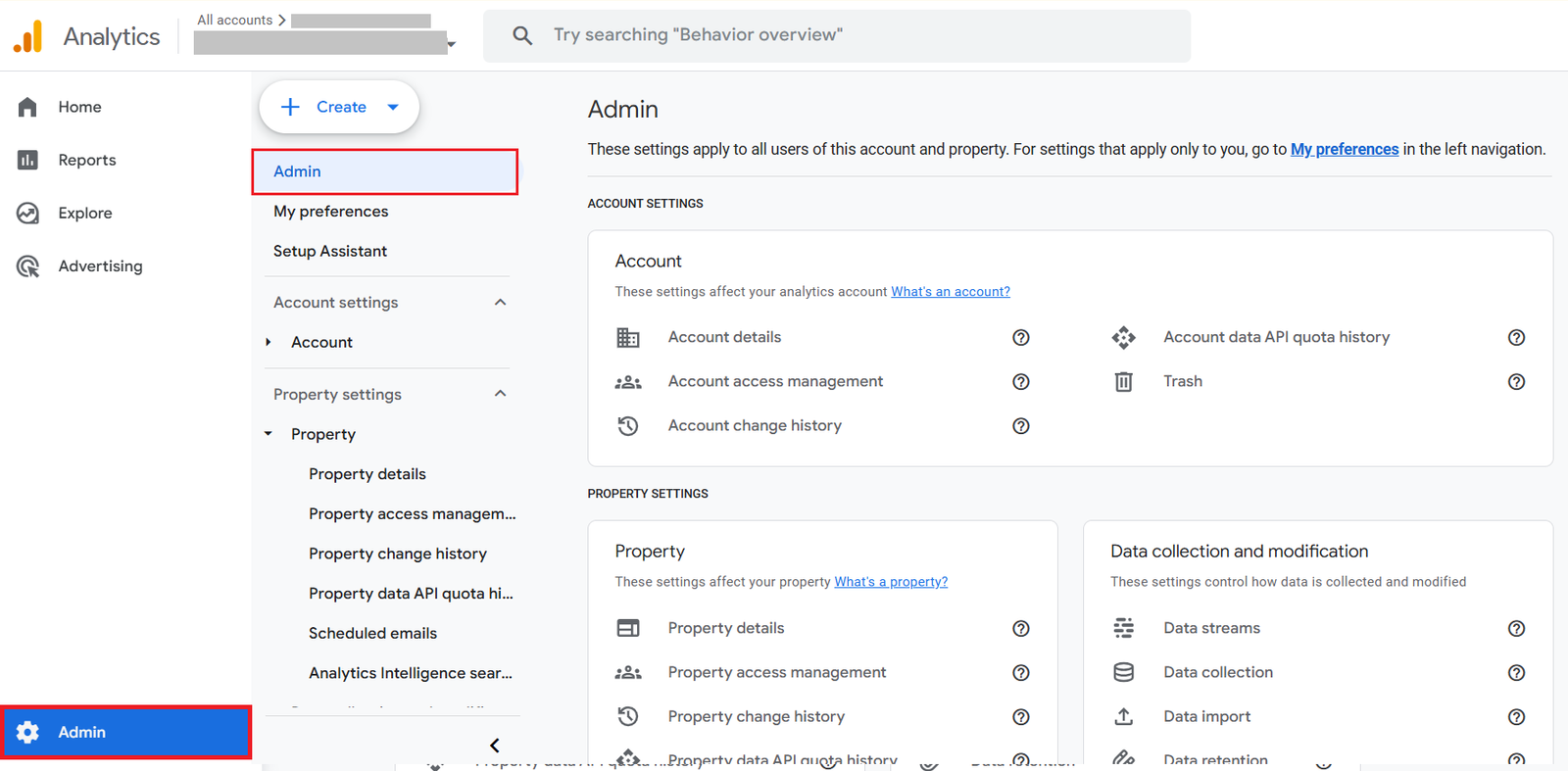
- In the “Property” column, check the property type.
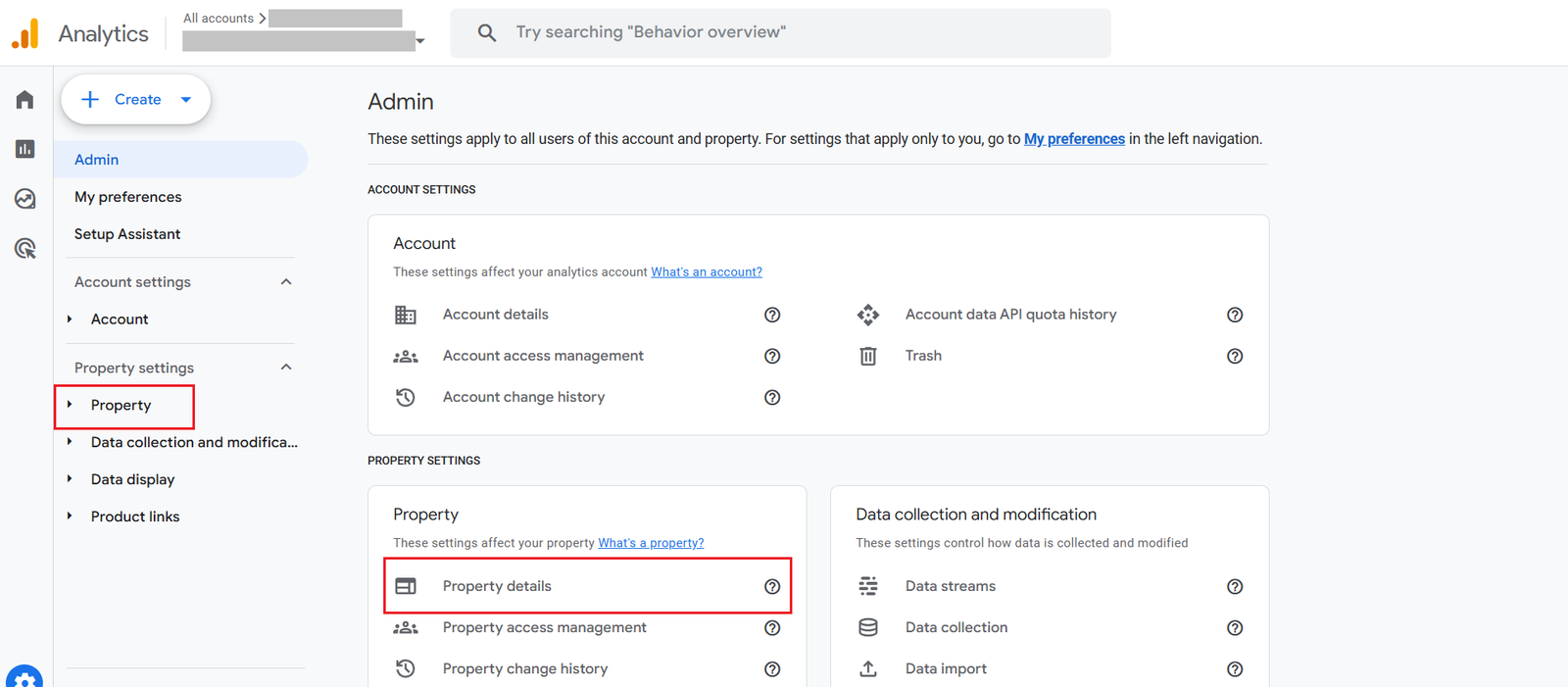
- Look under Property details. The ID will be displayed there.
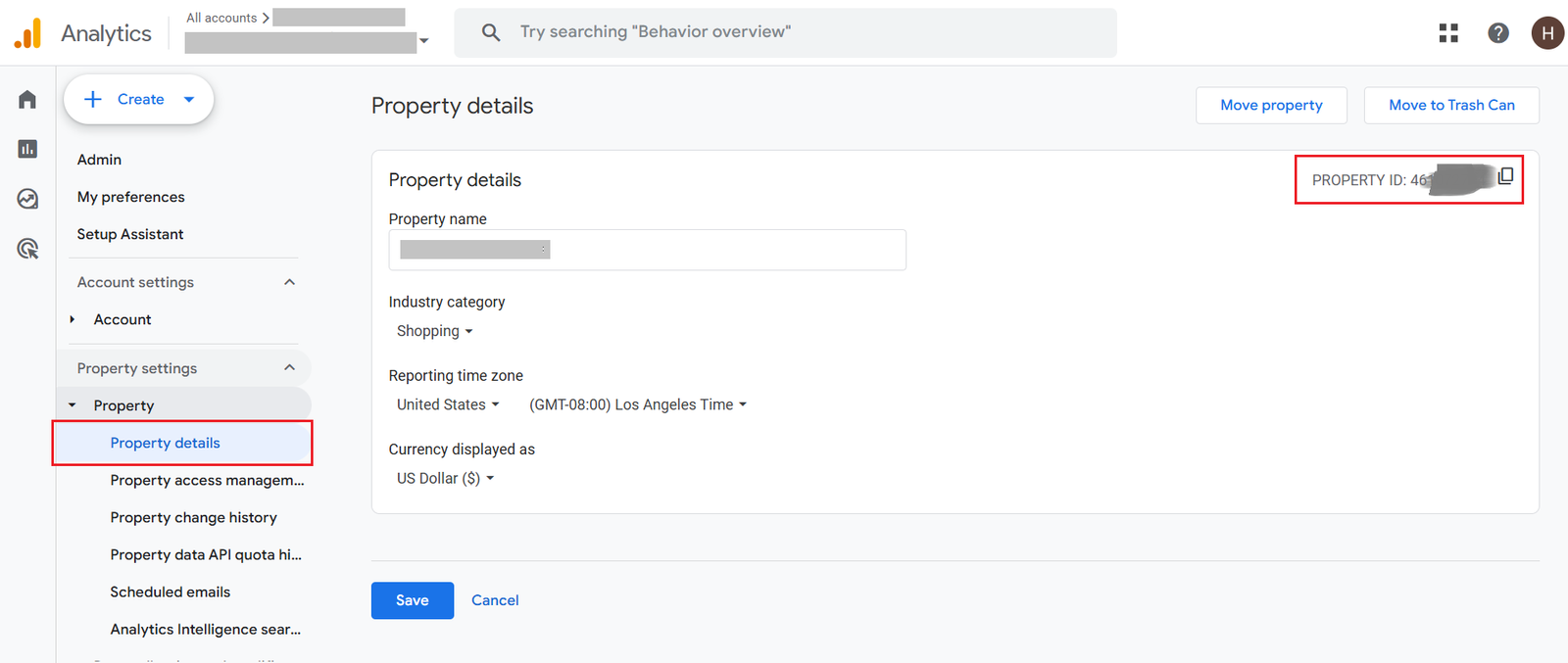
Step 4: Look for the GA4 tracking code
Inspect the source code of your website and look for the GA4 tracking code.
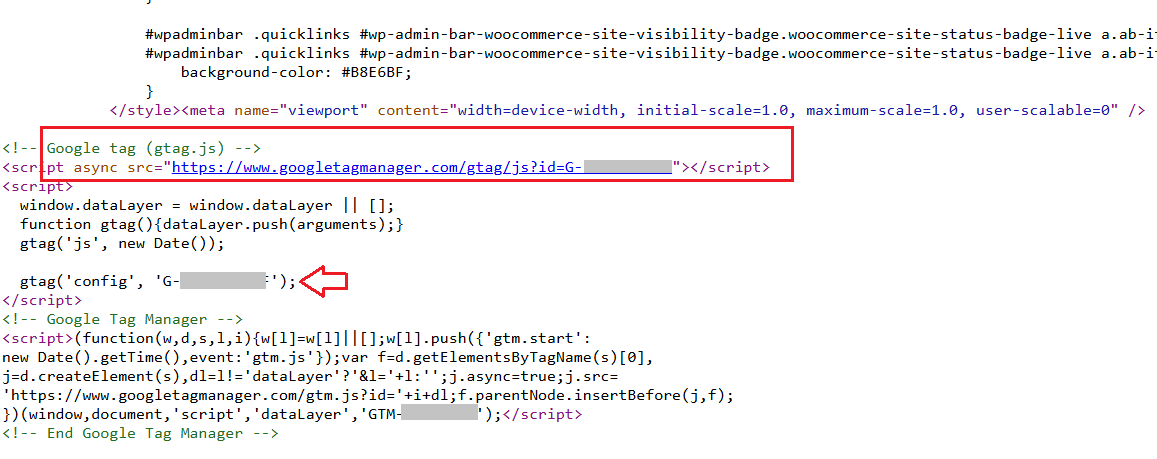
<script async src="https://www.googletagmanager.com/gtag/js?id=G-XXXXXXXXXX"></script>
<script>
window.dataLayer = window.dataLayer || [];
function gtag(){dataLayer.push(arguments);}
gtag('js', new Date());
gtag('config', 'G-XXXXXXXXXX');
</script>Step 5: Check the Google Tag Manager
If you’re using Google Tag Manager to manage your website tags, you can look for the GA4 tag. This will confirm that the GA4 property is set up and being actively used.
Final Words
Identifying whether you have Google Analytics 4 installed on your website is crucial for maintaining accurate tracking and preparing for the future of web analytics. By following this step-by-step guide, you can easily determine which version of Analytics you’re using and take necessary actions accordingly.
Remember, with Universal Analytics being sunset, transitioning to GA4 is no longer optional but essential. If you still need to make the switch, now is the time to implement GA4 to ensure uninterrupted data collection and access to enhanced features like cross-platform tracking and AI-powered insights. Stay ahead of the curve by embracing Google Analytics 4 as your primary analytics solution.